HP DeskJet GT 5820 - A 'System Extension Blocked' Message Displays (macOS)
HP DeskJet GT 5820 - A 'System Extension Blocked' Message Displays (macOS)
This document is for HP printers and macOS Mojave (10.14) and Catalina
(10.15).
When installing an HP print driver, a System Extension
Blocked error message displays during driver installation.

Use Apple's Security and Privacy System Preferences to allow the required
extensions to install for your printer to work correctly.
-
Open the Security & Privacy preferences.
-
If the error message displays, click Open Security Preferences.

-
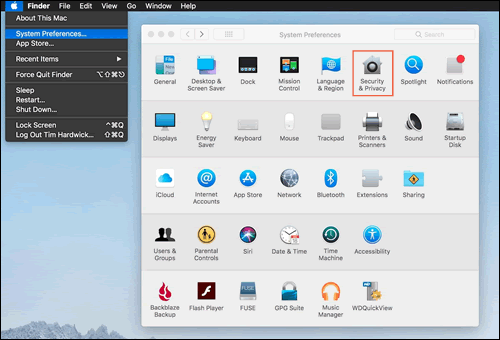
If the error message does not display, open the Apple menu, select System Preferences, and then click Security & Privacy.
-
-
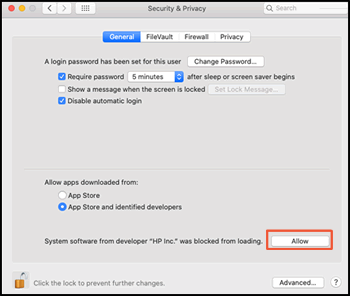
On the General tab, click Allow next to the HP Inc. was blocked from loading message.
-
If a Legacy System Extension message displays, click OK.

-
Restart the computer to finish the installation.
HP DeskJet GT 5810, 5820 Printers - A Blinking 'A' Displays During Alignment
This document is for HP DeskJet GT 5810, 5811, 5820, 5821, and 5822
All-in-One printers.
The printer is silent and displays a blinking A on the printer
control panel.
The printer printed an alignment page and is waiting to scan the page and
complete the alignment.
-
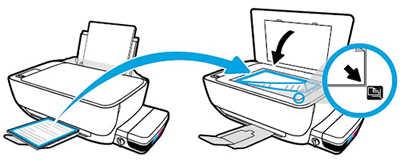
Lift the scanner lid.
-
Place the alignment page with the print side down on the scanner glass, and then position it according to the engraved guides around the glass.Figure : Place the alignment page on the scanner glass
-
Close the scanner lid.
-
On the control panel, press the Start Copy Color button
 .
.
https://support.hp.com/


Comments
Post a Comment