HP DeskJet GT 5810, 5820 Printers - Printing Self-Test Pages
HP DeskJet GT 5810, 5820 Printers - Printing Self-Test Pages
This document is for HP DeskJet GT 5810, 5811, 5820, 5821, and 5822
All-in-One printers.
This document contains instructions for printing a test page, a Printer
Status Report, a Print Quality Diagnostic page, a Wireless Network Test
Report, and a Network Configuration Page.
Print a test page
Print a test page to make sure that the hardware functions correctly.
-
Make sure that there is plain, white paper in the input tray.
-
Press and hold the Power button, and then press the Cancel button.
-
Release the Cancel button and then the Power button.The test page prints.
Figure : Example of a test page

Print a Printer Status Report
Print a Printer Status Report to find general information about the
printer such as product information, connectivity settings, and scan
settings.
Press and hold the Cancel button  for 3 seconds.
for 3 seconds.
A Printer Status Report prints.
Figure : Example of a Printer Status Report

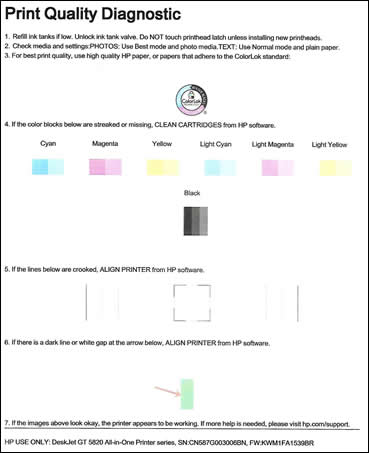
Print a Print Quality Diagnostic page
If you are experiencing any print quality issues, print a Print Quality
Diagnostic page to help identify the source of the issue.
Press and hold the Start Color Copy button  for 3 seconds.
for 3 seconds.
A Print Quality Diagnostic page prints.
Figure : Example of a Print Quality Diagnostic page
Print a Wireless Network Test Results report (5820 only)
Print the Wireless Network Test Results report for information about the
printer's wireless connection. The Wireless Network Test Results report
provides information about the printer status, hardware (MAC) address, and
the IP address. If the printer is connected to a network, the report
displays details about the network settings.
On the printer's control panel, press the Wireless button  and the Information button
  at the same time.
and the Information button at the same time.
Both a Wireless Network Test Results report and Network Configuration Page
print.
Figure : Example of a Wireless Network Test Results
report

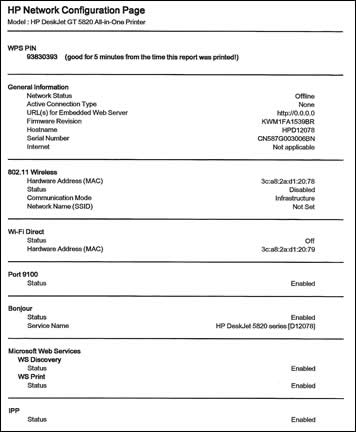
Print a Network Configuration Page (DeskJet GT 5820 only)
A Network Configuration Page lists important network settings such as
network status and the printer IP address.
Press the Wireless button and the Information button at the same time.
and the Information button at the same time.
Both a Network Configuration Page and a Wireless Network Test Results
report print.
Figure : Example of a Network Configuration Page
https://support.hp.com/


Comments
Post a Comment