HP DeskJet GT 5810, 5820 Printers - First Time Printer Setup
HP DeskJet GT 5810, 5820 Printers - First Time Printer Setup
This document is for HP DeskJet GT 5810, 5811, 5820, 5821, and 5822
All-in-One printers.
To set up a printer for the first time, remove the printer and packing
materials from the box, connect the power cable, fill the ink tanks,
install the printheads, load paper into the input tray, align the
printheads, prime the ink system, and then install the printer software.
NOTE:If you are looking for the printer software, go to:
Step 1: Remove the printer from the box
Remove the printer from the box, and then remove all tape, stickers, and
packing materials.
-
Remove the printer from the box.
-
Remove all tape and packing materials from the outside of the printer.

-
Open the exterior door.

-
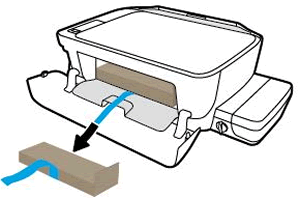
Remove the tape and packing material from under the printhead access door.

-
Open the printhead access door, and then remove the tape and packing material from inside the printer.
-
Close the printhead access door, and then close the exterior door.
-
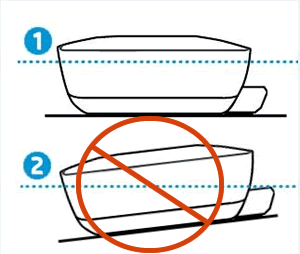
Place the printer on a level surface, where you intend to use it.
-
Level surface
-
Uneven surface
-
-
Connect the power cord to the rear of the printer, and then plug the other end into an electrical outlet.
CAUTION:
Do not connect the USB cable at this time.
-
Turn on the printer.
NOTE:
The printer might take up to 15 seconds to turn on.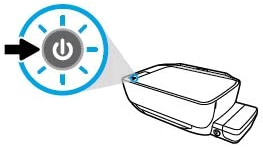
Step 2: Fill the ink tanks
Fill the ink tanks with ink using the ink bottles that shipped in the box
with your printer.
NOTE:Be aware of the following when working with ink bottles:
-
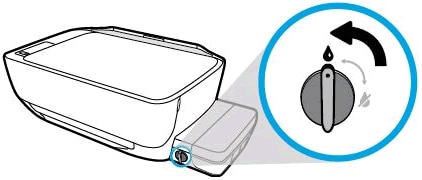
Make sure the ink valve is in the unlocked (vertical) position.
CAUTION:
Never move the printer while the ink valve is unlocked. -
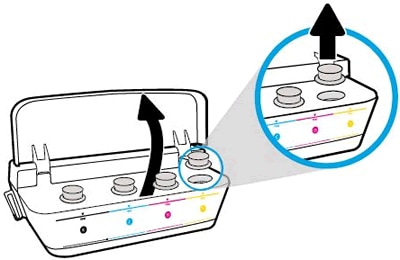
Open the ink tank lid, and then remove the plug from the yellow tank.
-
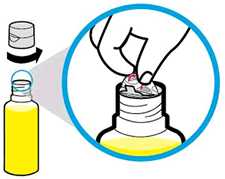
Remove the cap from the yellow ink bottle, and then pull the seal tab to remove it.Carefully dispose of the seal.
-
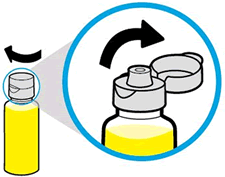
Replace and tighten the cap on the bottle, and then open the lid.
-
Turn the bottle upside down, and then place the yellow ink bottle over the tank spout.
-
Gently push the bottle down, and then let the ink drain into the ink tank. Fill the ink tank to the fill line on the tank.If the bottle does not start draining, remove and reinsert the bottle onto the tank spout. Do not squeeze the bottle.

-
After the yellow ink tank is filled, pull the ink bottle straight up.Close the ink bottle lid, set the bottle upright, and then push the ink tank plug into its slot on the ink tank.

-
Repeat the previous steps to fill the other ink tanks.
CAUTION:
The black ink bottle contains approximately 10 ml more ink than the maximum capacity of the black ink tank. Do not fill the black ink tank over the fill line. Store the remaining ink in a cool, dry place. -
Close the ink tank lid.

Step 3: Install the printheads
Install the printheads that shipped in the box with your printer.
-
Open the packages, and then remove the printheads.

-
Pull the orange plugs straight up to remove them from the tops of the printheads.

-
Remove the tape from the printhead contacts using the pull tabs.
CAUTION:
Do not touch the copper-colored contacts or the ink nozzles.Do not replace the protective tape on the contacts. Handling these parts can result in clogs, ink failure, and bad electricalconnections.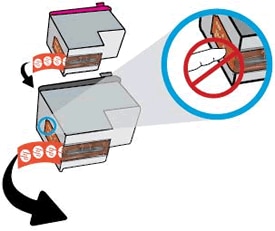
-
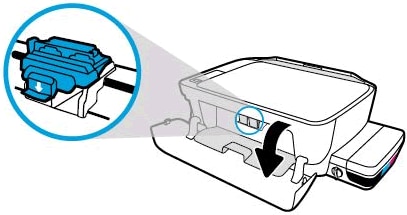
With the printer turned on, open the exterior door, and then open the printhead access door.
-
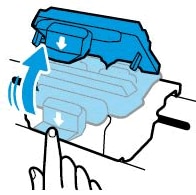
Gently push down on the blue printhead carriage latch.The blue printhead carriage latch opens.
-
Slide the printhead at a slight upward angle into the empty slot, and then gently push up on the printhead until it snaps into place.
-
Insert the black printhead into the right slot.
-
Insert the tri-color printhead into the left slot.

-
-
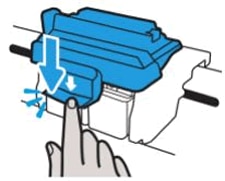
Close the blue carriage latch by pushing down firmly until the latch snaps into place.
CAUTION:
Very Important! Do not open the blue carriage latch after printhead installation. Opening the latch might result in severe ink system errors.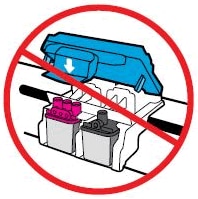
-
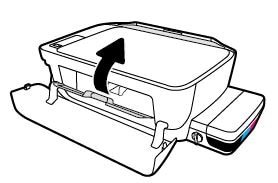
Close the printhead access door.A blinking P displays on the control panel.
-
Close the exterior door.

Step 4: Load paper into the input tray
Load plain white paper in the input tray after you install the printheads.
-
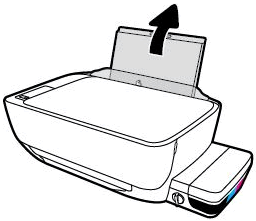
Raise the input tray.
-
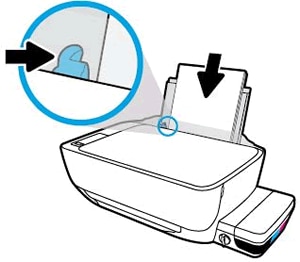
Slide the paper width guide all the way to the left.

-
Load plain white paper into the input tray, slide the stack of paper down until it stops, and then slide the paper width guide against the edge of the paper.
-
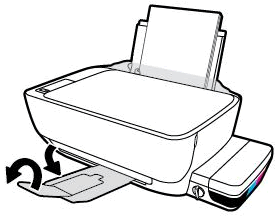
Pull out the output tray, and then raise the tray extender.
Step 5: Align the printheads and prime the ink system
Aligning the printheads is necessary to achieve the best print quality.
After the alignment, the printer begins the process of priming the ink
system.
CAUTION:Do not disconnect power or move the printer during the priming process.
-
On the printer control panel, press and hold the Resume button
 for 3 seconds.
The alignment starts when the blinking P becomes a blinking A.The printer prints an alignment page.
for 3 seconds.
The alignment starts when the blinking P becomes a blinking A.The printer prints an alignment page.
-
Lift the scanner lid.
-
Place the alignment page with the print side down on the right-front corner of the scanner glass, and then close the scanner lid. Position it according to the engraved guides around the scanner glass.
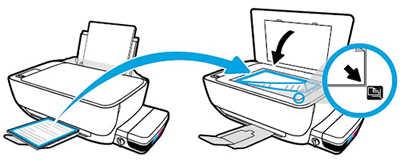
-
Close the scanner lid.
-
On the control panel, press the Start Copy Color button
 .
.
NOTE:
The priming process can last up to 45 minutes. During this time, you can install the printer software and begin using your printer. You may print, scan, and copy while priming occurs in the background.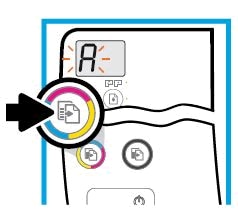 The printer aligns the printheads.
 -
Priming is complete when the rotating lines stop and a 0 displays on the control panel.
Step 6: Install the printer software
Your HP printer hardware is now set up, and you can install the printing
software. Do not attempt to connect the printer to a computer with a USB
cable until instructed to do so in the printing software.
https://support.hp.com/


Comments
Post a Comment